 Local project backup
Bundlekeep
Back up projects from every usefulweb app into one file, check it and restore any part.
Bundlekeep collects the projects you made in the usefulweb premium apps into one portable backup file on your device. Scan the projects your browser saved in each app or add exported project files, review what each file is and what it leaves out, and save the backup with a checksum for every file. Later, verify the backup and download exactly the projects you need — restoring never overwrites what an app has saved.
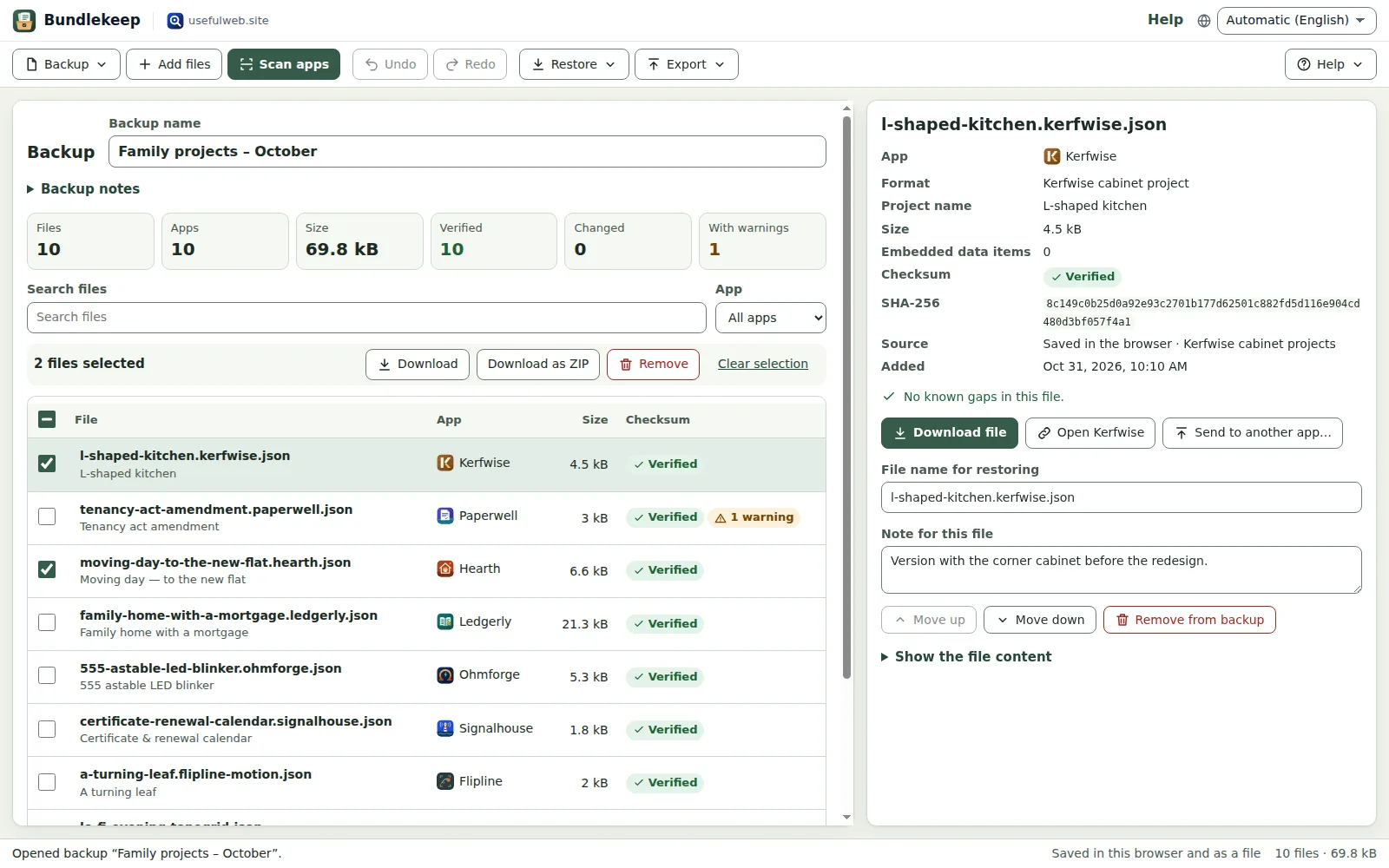
Screenshots
- One backup, projects from many apps
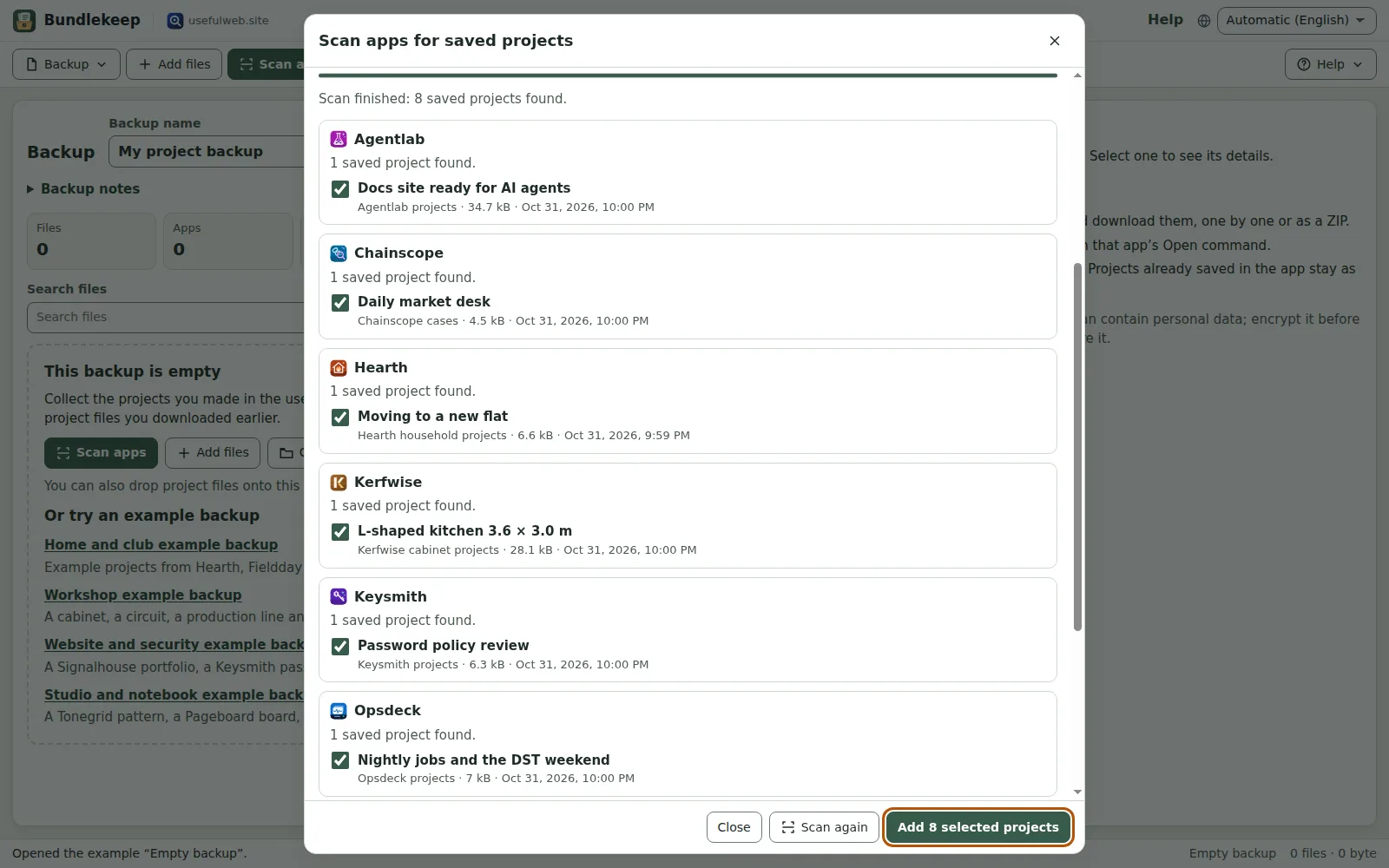 Scan the projects saved in your apps
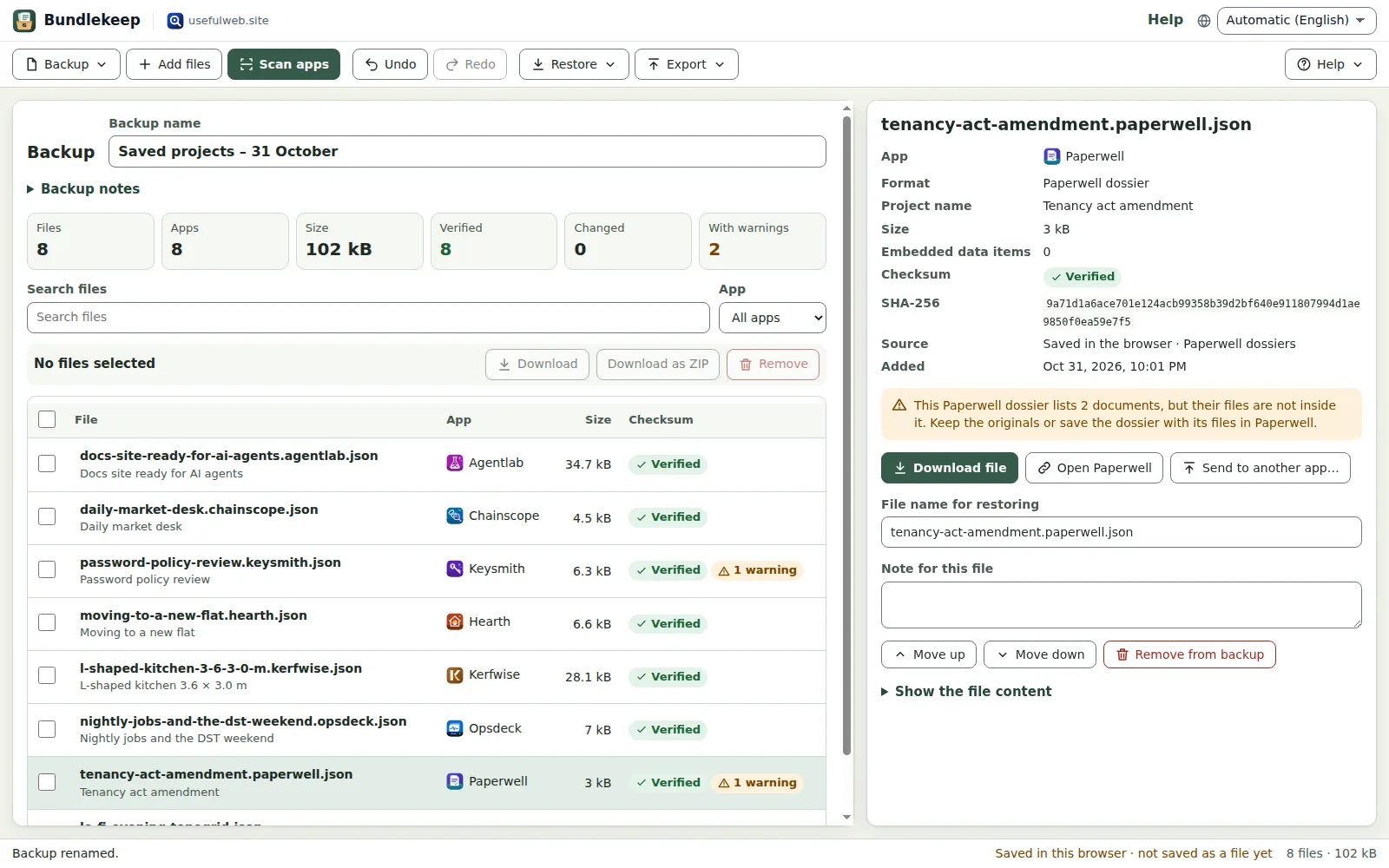 Know what a restore brings back
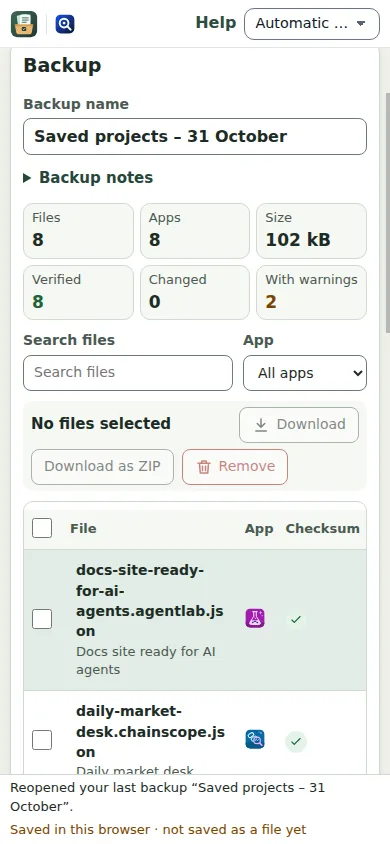 Check a backup on the phone
Features
Scan every app
Finds the projects your browser saved in all 26 premium apps — drawings, circuits, dossiers, boards, notebooks and more — read-only, after you start the scan.
Add project files
Choose or drop exported project files of any app, or add the files of another Bundlekeep backup; identical files are skipped.
Know what each file is
Bundlekeep recognises 54 project formats of the premium apps, its own backups included, and shows the app, project name, size and embedded images of every file.
Honest gaps
Warnings tell you when a project lists documents or media that live outside the file, keeps secrets, or has an unknown format.
Checksums for every file
Each file gets a SHA-256 checksum when it is added; opening the backup later shows which files are verified, changed or unchecked.
Restore what you need
Download one file, the selected files or everything as a ZIP, then open each file in its app. Nothing in the apps is overwritten.
Restore checklist
A Markdown checklist groups the files by app with links, and a CSV inventory lists names, formats, sizes and checksums.
Rename, note and sort
Give files clear download names, add a note per file and to the backup, filter by app and search by name.
Autosave and recent backups
Your backup is kept in this browser while you work; reopen recent backups, save the backup file or share a small one as a link.
Undo and redo
Every add, remove, rename and note can be undone and redone, also with Ctrl+Z and Ctrl+Y.
Works with the other apps
Receive JSON files from other premium apps, and send a project file, the inventory table or the checklist onward.
Encrypt and check
Continue with Local File Encryption Studio, Hash & HMAC Calculator or File Format Doctor, and use Bundlekeep’s own API tools.


Templates
Start from a ready-made project and change it to fit.
Home and club example backup
Example projects from Hearth, Fieldday and Ledgerly in one backup.
Workshop example backup
A cabinet, a circuit, a production line and an embroidery design.
Website and security example backup
A Signalhouse portfolio, a Keysmith password policy and a Provenance dependency review.
Studio and notebook example backup
A Tonegrid pattern, a Pageboard board, a Chartroom project and a Proofline notebook.
Empty backup
Start with an empty backup and add your own projects.
Built-in tools
Bundlekeep uses these tools. Each one also has its own page and works on its own, in the browser, through the JSON API and through MCP.
- Project File Identifier Bundlekeep engineFind out which usefulweb app opens a project file and what it leaves out.
- Project Backup Builder Bundlekeep engineCombine usefulweb project files into one Bundlekeep backup with checksums.
- Project Backup Verifier Bundlekeep engineCheck a Bundlekeep backup file by file and get a restore checklist.
- Local File Encryption StudioEncrypt and decrypt files with AES-256-GCM and a password, locally in your browser.
- Hash & HMAC CalculatorMD5, SHA-2, SHA-3, BLAKE2, CRC32 and HMAC of text or files, with checksum compare.
- File Format DoctorFind out what a file really is from its bytes, why it will not open and how to convert it.
For AI agents
Bundlekeep runs on a deterministic engine. The same functions are available as tools with a JSON API and MCP, so scripts and AI agents get exactly the results the app shows.
- Project File Identifier – Find out which usefulweb app opens a project file and what it leaves out.
Tool page ·POST https://bundlekeep.usefulweb.site/api/v1/tools/bundlekeep-project-identifier/calculate· MCPbundlekeep_project_identifier - Project Backup Builder – Combine usefulweb project files into one Bundlekeep backup with checksums.
Tool page ·POST https://bundlekeep.usefulweb.site/api/v1/tools/bundlekeep-backup-builder/calculate· MCPbundlekeep_backup_builder - Project Backup Verifier – Check a Bundlekeep backup file by file and get a restore checklist.
Tool page ·POST https://bundlekeep.usefulweb.site/api/v1/tools/bundlekeep-backup-verifier/calculate· MCPbundlekeep_backup_verifier - Local File Encryption Studio – Encrypt and decrypt files with AES-256-GCM and a password, locally in your browser.
Tool page ·POST https://bundlekeep.usefulweb.site/api/v1/tools/file-encryption-studio/calculate· MCPfile_encryption_studio - Hash & HMAC Calculator – MD5, SHA-2, SHA-3, BLAKE2, CRC32 and HMAC of text or files, with checksum compare.
Tool page ·POST https://bundlekeep.usefulweb.site/api/v1/tools/hash-hmac-calculator/calculate· MCPhash_hmac_calculator - File Format Doctor – Find out what a file really is from its bytes, why it will not open and how to convert it.
Tool page ·POST https://bundlekeep.usefulweb.site/api/v1/tools/file-format-doctor/calculate· MCPfile_format_doctor
- MCP endpoint (Streamable HTTP):
https://bundlekeep.usefulweb.site/mcp - Project file format (JSON Schema): https://bundlekeep.usefulweb.site/project.schema.json
- OpenAPI description: /openapi.json · llms.txt · API & MCP
Build a project through the API, then open it in the app with a link to https://bundlekeep.usefulweb.site/app#project=<base64url JSON>.
Import & export
Import
- Project files of every usefulweb premium app (.json, 54 formats)
- Bundlekeep backup (.bundlekeep.json)
- Projects saved in this browser (scan)
- JSON from another premium app (App Bridge)
- Backup link (#project=…)
Export
- Bundlekeep backup (.bundlekeep.json)
- Original project files (.json)
- Selected or all files as ZIP
- Inventory (CSV)
- Restore checklist (Markdown)
- Printable inventory
Keyboard shortcuts
| Keys | Action |
|---|---|
| Ctrl + O | Open a backup file |
| Ctrl + S | Save the backup file |
| Ctrl + Z / Ctrl + Y | Undo / redo |
| Ctrl + A | Select all files in the list (when the list has focus) |
| Delete | Remove the selected files from the backup (when the list has focus) |
| A | Add project files (single-key shortcut, can be switched off) |
| S | Scan apps for saved projects (single-key shortcut) |
| ? | Show keyboard shortcuts |
Frequently asked questions
Which projects can Bundlekeep collect?
The projects that the 26 other premium apps save in this browser, from the stores listed in the documentation, and any project file you choose. Bundlekeep recognises 54 formats; other JSON files can be kept too, with a warning.
Does scanning change anything in my apps?
No. The scan starts only when you press Scan, opens each app’s storage read-only in a hidden helper page of that app, and copies the projects you then select. Nothing is deleted or overwritten.
How do I restore a project?
Open the backup, select the files and download them (one by one or as a ZIP). Open each file in its app with that app’s Open command. The app adds it as a project; your other projects stay as they are.
Are pictures, documents and media included?
Everything inside a project file is included, such as embedded images. Some apps keep large files separately — Paperwell documents and Reelcraft media, for example. Bundlekeep warns about these; keep the originals or save those projects with their files in the app.
Is the backup encrypted?
No. A backup can contain personal data and, for Keysmith projects that keep secrets, secrets. Encrypt the backup with Local File Encryption Studio (it runs in your browser) before you store it in the cloud or share it.
What do the checksums prove?
Each file gets a SHA-256 checksum when it is added. When you open the backup later, Bundlekeep recomputes it: “Verified” means the file is byte for byte the one you added. It does not prove that the app version you use today can still open it.
Why did a scan find nothing?
The app may have no saved projects in this browser, or the browser blocks storage in embedded pages (some privacy settings do). Projects saved in another browser or device are never visible. Export the projects from the app and add the files instead.
Where is my backup kept?
While you work, in this browser’s storage for Bundlekeep. It becomes a real backup only when you save the backup file and keep it somewhere safe, ideally in two places.
Limitations
What Bundlekeep does not do (yet):
- A scan only sees projects saved in this browser on this device, and only the stores Bundlekeep knows; unsaved changes, settings and preferences are not collected.
- Files kept outside a project (Paperwell documents, Reelcraft media, separate image files) are not collected; Bundlekeep warns when a project refers to them.
- Browsers with strict storage partitioning or blocked third-party storage can hide saved projects from the scan.
- Restoring downloads files; you open each one in its app. Bundlekeep never writes into another app’s storage.
- Backups are not encrypted. Limits: 200 files, 10 MB per file and 50 MB per backup; share links only for small backups.
- Checksums detect changed files; they cannot tell whether a future app version still opens an old project.
Tutorials
Learn Bundlekeep step by step.
- Your first backup in five minutesCollect projects from your usefulweb apps into one Bundlekeep backup file and keep it safe.Beginner 5 min
- Collect projects saved in your appsHow the scan finds the projects other premium apps saved in this browser, what it reads and what it leaves out.Beginner 6 min
- Review files, warnings and checksumsRead the file details, understand each warning and use checksums to check a backup months later.Intermediate 6 min
- Restore projects without overwriting anythingDownload single projects, a selection or a ZIP from a backup and open them in their apps.Beginner 5 min
- Organise, share and export backupsRename files, add notes, undo changes, reopen recent backups, export an inventory and send files to other apps.Intermediate 6 min
- Automate backups with the API and MCPIdentify project files, build backups and verify them with Bundlekeep's three engine tools over HTTP or MCP.Advanced 7 min
Ready to try it?
Other premium apps
-

Kerfwise
Cabinet & furniture CAD
Design cabinets and furniture, get cut lists, optimised sheet layouts, costs and drawings.
-

Kinetica
Robot motion studio
Simulate robot arms in your browser: kinematics, trajectories, collisions, program export.
-

Threadsmith
Embroidery digitizing studio
Draw or import artwork, turn it into stitches, export DST, PES, JEF or EXP files.
-

Ohmforge
Virtual electronics workbench
Draw a circuit, switch it on, and measure it with real-feeling bench instruments.
-

Twinworks
Factory digital twin & production simulation
Model a production line, simulate it and find the bottleneck — free, in your browser.
-

Agentlab
AI-agent & LLM workbench
Test an AI agent before release: permissions, traces, costs, citations and output checks.
-

Chainscope
Web3 investigation desk
Investigate transactions, bridges, contracts, DAOs and wallets in one case file.
-

Chartroom
Data & charts studio
Import data, chart it, run analyses and publish a report — one workspace, free.
-

Fieldday
Sports club & training organiser
Fixtures, brackets, ratings and training plans for your club — in one workspace.
-

Flipline
Drawing, storyboards & animation
A few drawings. A little life. Make a flipbook in your browser.
-

Hearth
Home & travel planner
Plan meals, chores, home care, a move and trips for your whole household in one place.
-

Keysmith
Crypto & secrets lab
Audit certificates, keys, TLS and passwords in one lab; secrets stay on your device.
-

Ledgerly
Household finance & life-admin desk
Budgets, bills, subscriptions, loans, contracts and deadlines on one private desk.
-

Lumina
Photo editor & image toolkit
Bring out what you saw. A free photo studio, right in your browser.
-

OBSCURIQ
OSINT case desk
Organize public-source research: cases, a research log, pivots and indicators.
-

Opsdeck
Developer & ops workbench
One deck for CI failures, cron, traces, k8s events, API diffs, query plans and Terraform.
-

Pageboard
Website inspiration boards
Collect website references, sort them with tags and arrange them on a moodboard.
-

Panelcraft
Comic books & figure references
Shape a page. Arrange a book. Give your story a voice.
-

Paperwell
Document studio: PDFs, OCR, redaction, forms & contract reading
Your paperwork in one dossier: PDF tools, OCR, redaction, forms and contract reading.
-

Proofline
Math notebook
Solve, graph, test and visualise in one notebook — with data, findings and a report.
-

Provenance
Software supply-chain security desk
SBOMs, CVEs, containers and licences in one risk register — free, in your browser.
-

RavingDesk
Paper trading workspace
Practise trading on paper: orders, ledger, risk, exposure and journal. No real money.
-

Reelcraft
Audio, video & image batch studio
Audio, video & image batch studio: cut, convert, compress, subtitle, reframe
-

Renderloom
3D scene & material studio
Shape a scene. Find its light. Keep every idea editable.
-

Signalhouse
Website & internet infrastructure inspector
Inspect DNS, TLS, mail, CDN and routing of all your domains — and see what changed.
-

Tonegrid
Tone matrix & beat sequencer
Light up squares to build looping melodies and beats, then arrange them into songs.